Creating & Adding Badges
Badges
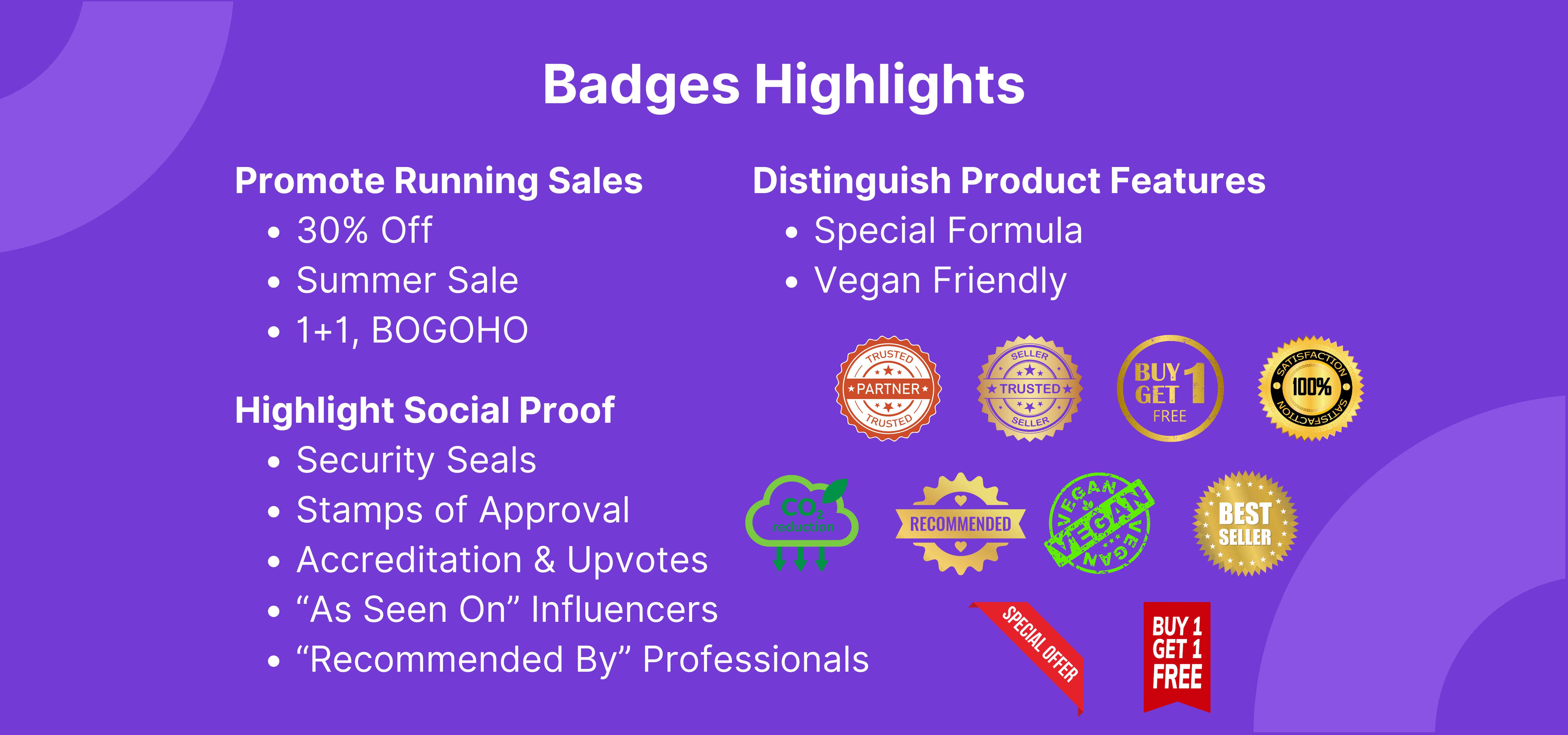
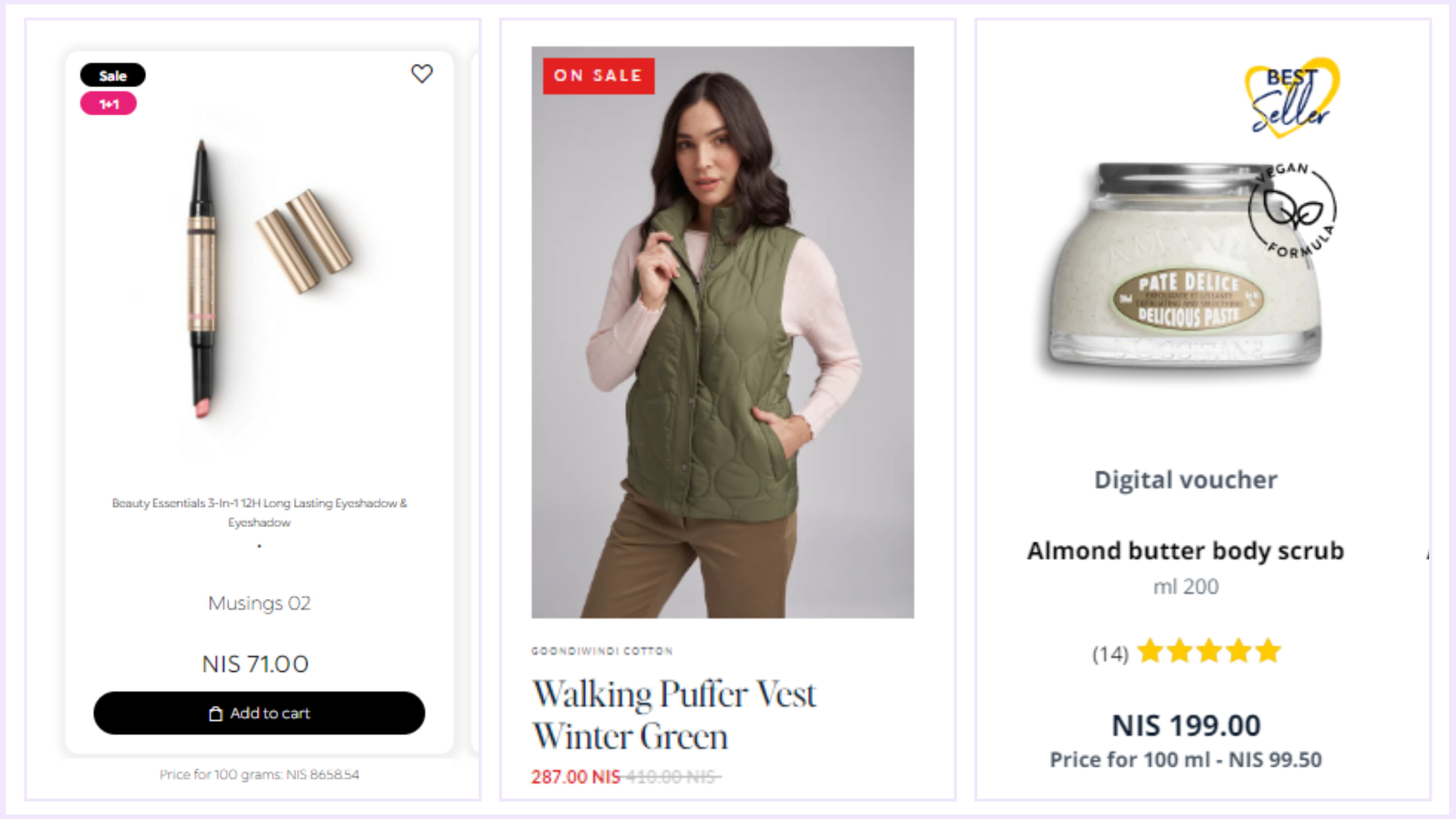
Section titled “Badges”- Customizable and brand compatible
- Can be assigned by many variations: to specific SKUs, fabrication lines, collections, price tags, discount rates and more!
- Design your badge or upload a file
- User friendly editor
View Our Tutorial On Creating Badges
Two methods of creating a badge
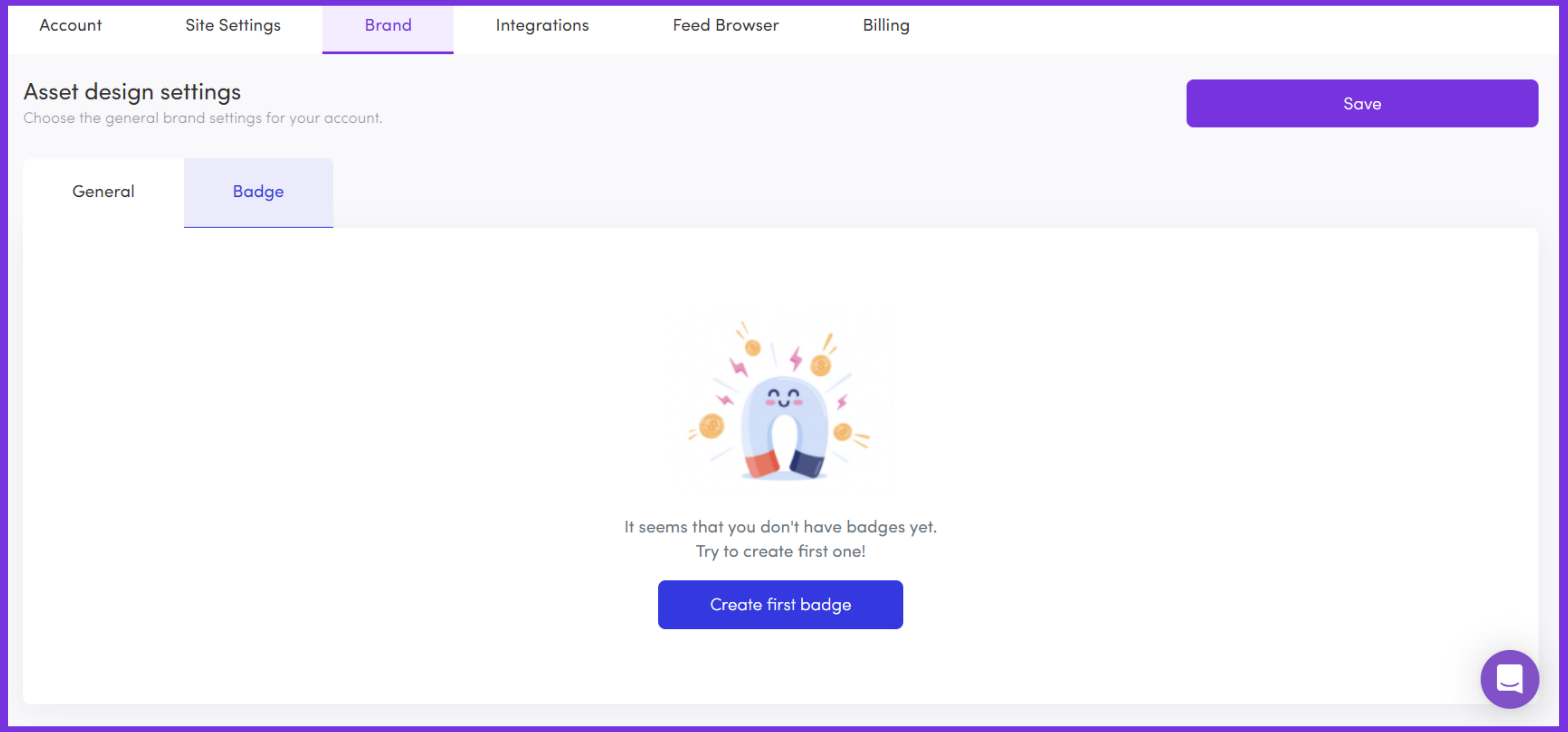
Section titled “Two methods of creating a badge”From the Dialogue dashboard > Settings > Brand > Badge > Create First Badge
1. Click Change Background to Upload a file
Section titled “1. Click Change Background to Upload a file”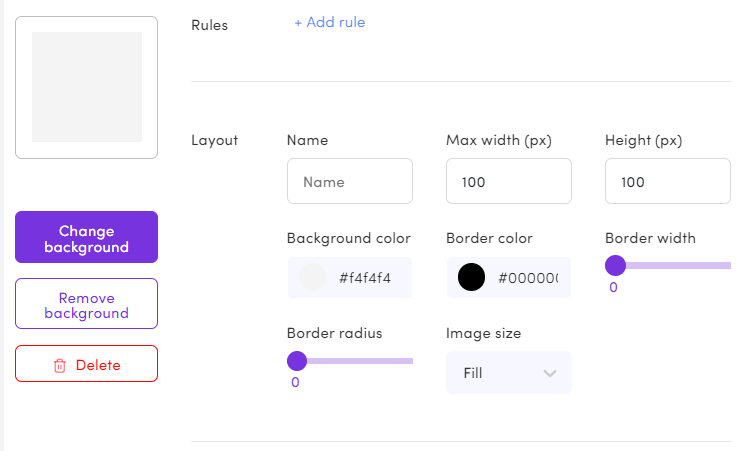
2. Design your own
Section titled “2. Design your own”Name your badge, adjust height and width, background color, Headline and Sub Headline font type, size and color, position on the asset or image.
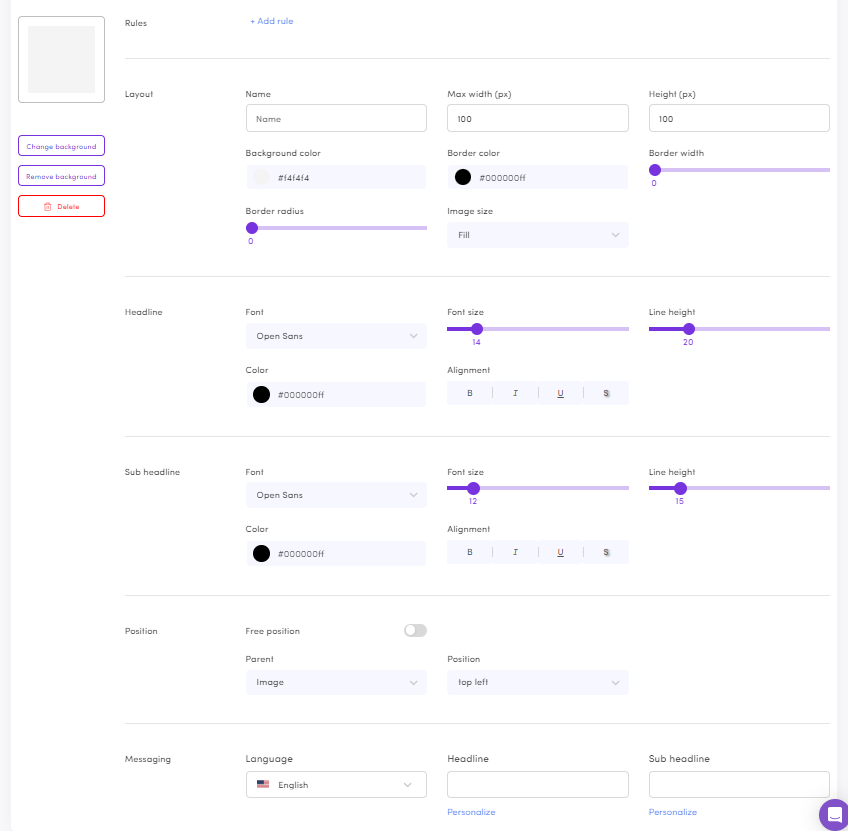
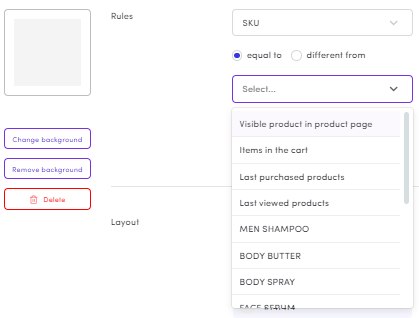
Add a rule to assign the badge
Section titled “Add a rule to assign the badge”Where should this badge be assigned?
By SKU? Variants? A certain collection? or several Collections? By price? Or sale price?