

How To Create & Launch Checkout Upsells & Cross-sells (Shopify Plus)
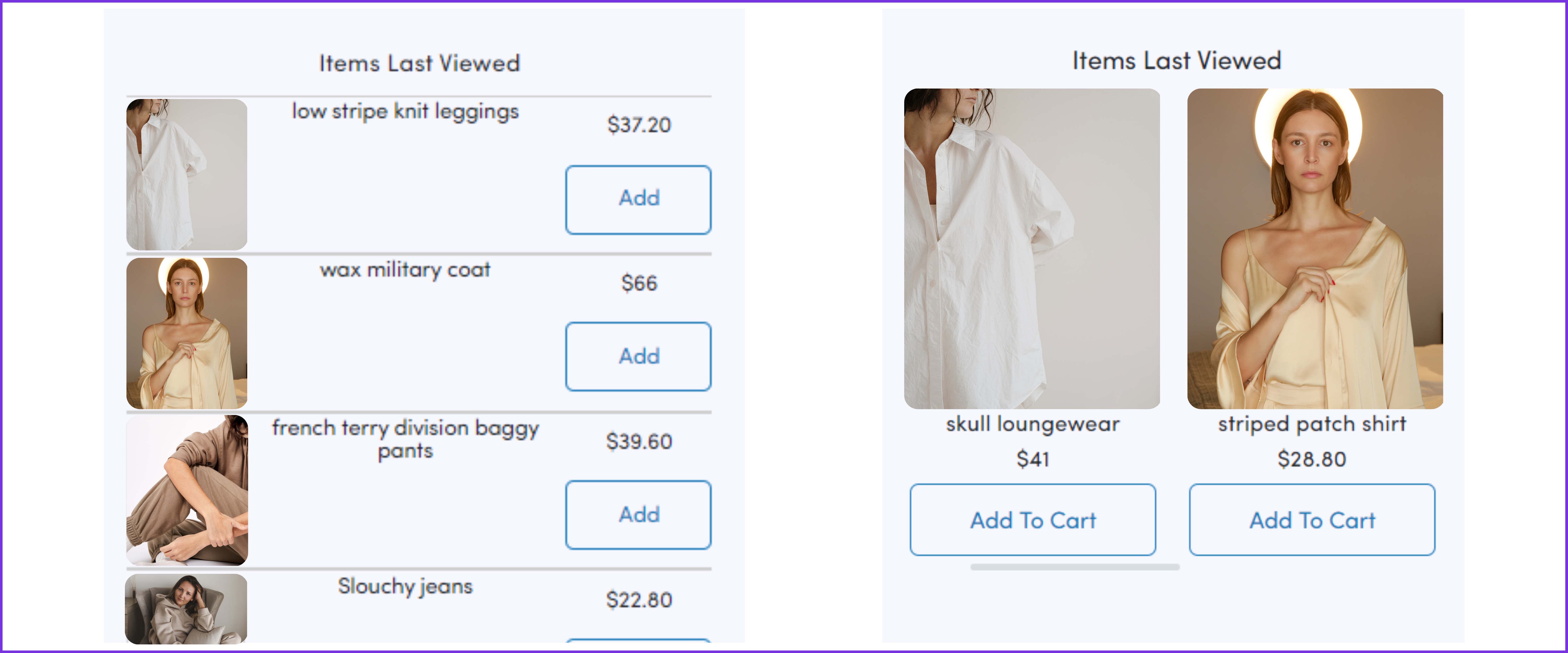
Checkout is the last moment before a shopper pays. Checkout Upsells & Cross-sells shows them personalized product suggestions right there, so they can add one more item to the order.
Good to know
Section titled “Good to know”- Shopify Plus only. Shopify only allows apps on the checkout page for Shopify Plus stores.
- Two parts: you create and publish the asset in Dialogue, then add the Dialogue checkout messaging block in Shopify’s checkout editor.
- Ideas that work well: items that go well with what’s in the cart, items the shopper viewed, best sellers, and small impulse items.
1. Create the asset in Dialogue
Section titled “1. Create the asset in Dialogue”- In the left menu, click Assets > Create Asset.
- Under Boosters, choose Checkout Upsells & Cross-sells.
- Name your asset and create it.
- Set it up in the Design and Behavior tabs (see below).
- Click Publish.
Publish the asset in Dialogue first. The checkout block only shows assets that are published.
2. Add the Dialogue block to your Shopify checkout
Section titled “2. Add the Dialogue block to your Shopify checkout”- In your Shopify admin, go to Settings > Checkout.
- Click Customize to open the checkout editor.
- Choose where you want the recommendations, click Add app block, and pick Dialogue checkout messaging.
- Click Save.
The block shows your published checkout asset automatically. If you have more than one checkout asset, click the block and enter the one you want in Asset id. Not sure which number to use? Ask Dia.
Using the old “Dialogue Checkout Extension” block? Shopify retired it. Replace it with Dialogue checkout messaging: your existing checkout asset keeps its design and keeps counting its results.
Design
Section titled “Design”The asset follows your checkout’s colors and fonts, which you set in Shopify’s checkout editor. In Dialogue, use the Design tab to change the headline, prices, buttons, and whether products show as a carousel or a list.
Who sees what
Section titled “Who sees what”Use the Behavior tab to choose the audience, and which products to recommend to each one. New to this? Read How to become a (1-click) segmentation hero.
Offer a discount
Section titled “Offer a discount”A small incentive can turn a “maybe” into an extra item. In the asset editor, find Choose discount, then pick one of your store’s discounts or create a new one.
Questions? Open the chat in your Dialogue dashboard and ask Dia, or ask to talk to a person.