

Use Bundled Items recommendations in a banner
Before you start
Section titled “Before you start”-
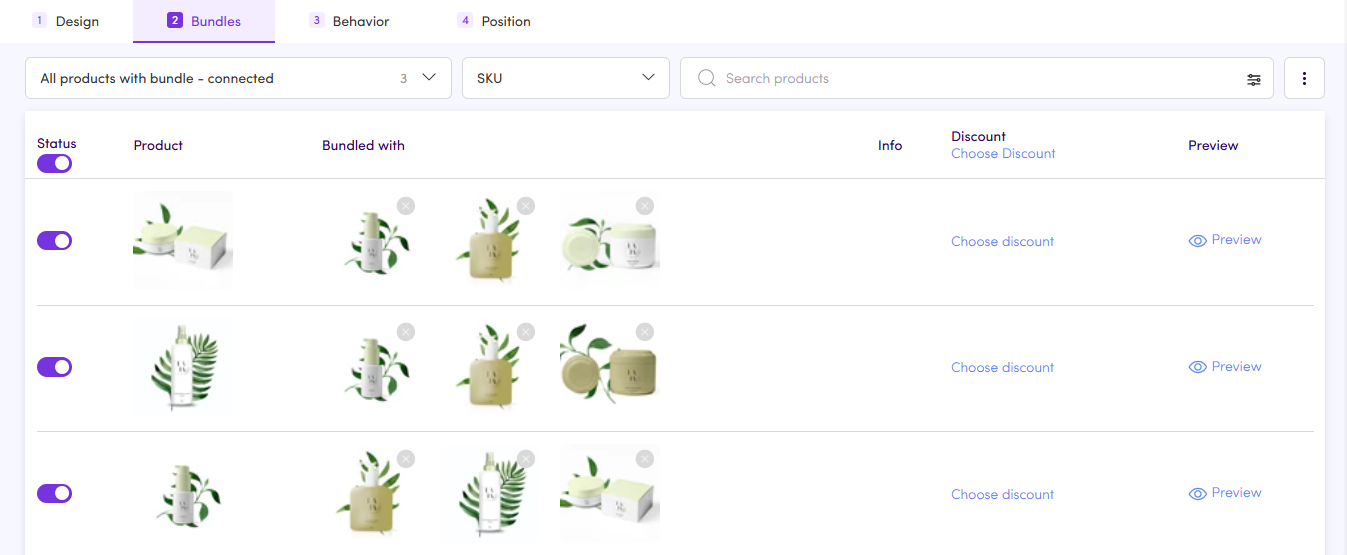
Make sure you have at least one Bundle asset with connected product combinations
-
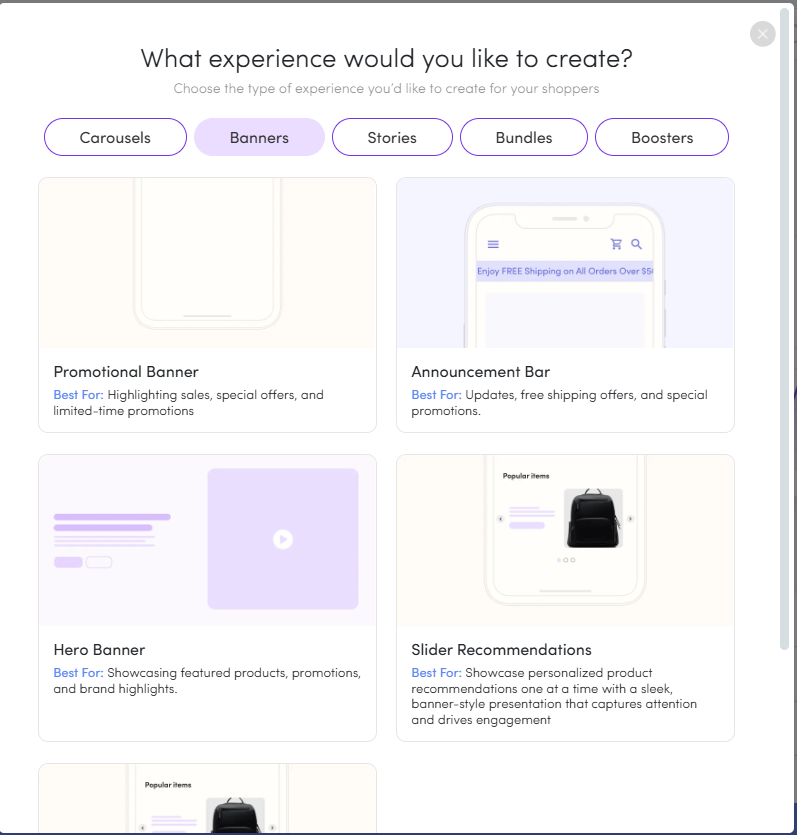
Make sure you have a Slider Recommendations banner asset created
How Bundled Items works
Section titled “How Bundled Items works”An additional layer to Dialogue’s Complementary Items algorithm, Bundled Items reads directly from your existing Bundle asset configurations. When a shopper added an item in cart, if the item has add-ons in the bundle asset, the banner displays items that match what’s in their cart. This means every recommendation shown is one you’ve already reviewed and approved as part of a bundle.
Set up Bundled Items in a banner behavior
Section titled “Set up Bundled Items in a banner behavior”- Open/create a Slider Recommendations banner asset in the asset editor and click the Behavior Tab.
- Select the behavior you want to update (Preferably the “All Visitors”), or click + Add Behavior to create a new one.
- In the behavior panel, click Product Display to open the display rule options.
- Scroll to the Custom Rules section and select Bundled Items.
- Add relevant messaging, like: “Goes great with”.
- Click Save & Exit to apply the rule.
- Position the asset in the cart, floating/mini cart or checkout.
How it appears in your store
Section titled “How it appears in your store”When a shopper has a qualifying product in their cart, the banner renders the corresponding add-on items from your bundle configuration — inline in the cart drawer, at checkout, or in the floating cart, depending on where the banner is positioned. The shopper sees a targeted recommendation without being redirected to a product page, keeping them focused on completing their purchase.