

Understanding Dialogue Discounts: The Complete Guide
How Dialogue Discounts appear on the Shopify discount panel
Section titled “How Dialogue Discounts appear on the Shopify discount panel”You will note that a new discount type is added to your discount panel called “DialogueDiscount” and it will be active by default.
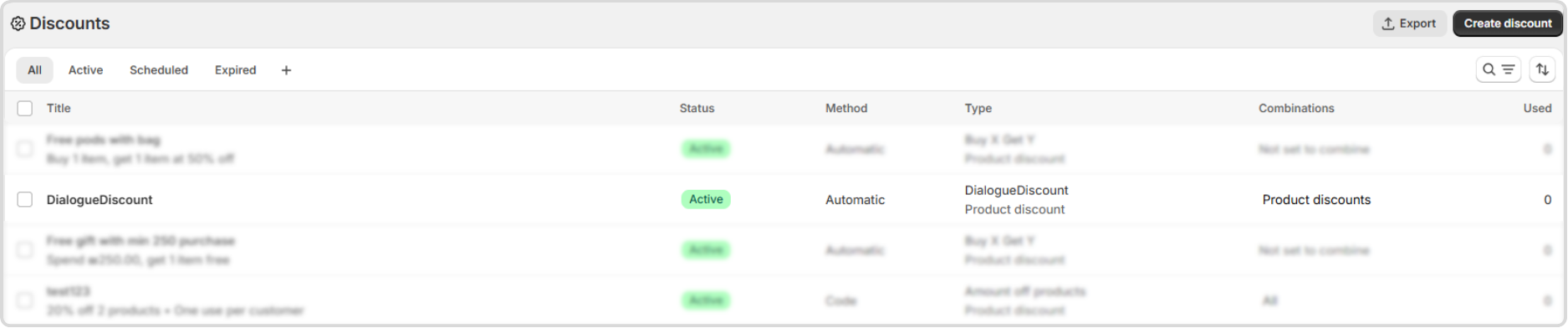
A Dialogue Discount will be effectively active, only once a discount has been created and applied on an asset via the Discount management panel on the Dialogue Dashboard.
Three Dialogue Discount Types
Section titled “Three Dialogue Discount Types”- Amount Off Products
Simple discounts applied directly to products with no purchase requirements - Buy X Get Y Discounts
Conditional discounts where customers qualify for offers when meeting specific criteria - Bundle Discounts
Discounts applied to product bundles you’ve created
1. Amount Off Products
Section titled “1. Amount Off Products”This discount applies directly to asset products without any purchase requirements.
How it Works
-
No Preconditions: Shoppers automatically receive this discount on asset products with no additional conditions
-
Applies To: Products displayed in your asset (from Product Display Rules or content units)
-
Discount Options:
- Percentage Off: A percentage discount (e.g., 15% off)
- Fixed Amount Off: A specific dollar amount (e.g., $10 off)
- Free Products: Offer items for free
Perfect For
- Flash sales and seasonal promotions
- Clearance or inventory reduction
- Introducing new products to your customers
- Simplicity when you don’t want complex qualification rules
2. Buy X Get Y Discounts
Section titled “2. Buy X Get Y Discounts”This conditional discount requires customers to meet specific criteria before receiving the discount benefit.
How it Works
The “X” Part: What Customers Need to Do
-
Minimum Product Quantity: Require customers to purchase a specific quantity of products or variants from a defined pool:
- Set the minimum quantity (1-10 products)
- Add products and variants to the product pool (up to 10 SKUs)
- Enable “All” checkbox to require customers to purchase all specified products
Or
- Minimum Cart Value: Require the customer’s cart to reach a minimum value amount before the discount applies (e.g., $50+)
Or
- A combined mix of both conditions: Minimum Product Quantity + Minimum Cart Value
The “Y” Part: What Customers Get
Set the discount shoppers will receive on products displayed in this asset:
Discount Type
- Percentage Off: A percentage discount (e.g., 15% off)
- Fixed Amount Off: A specific dollar amount (e.g., $10 off)
- Free Products: Offer items for free
Discount Quantity
- Set a maximum number of unique products that will receive the discount
- Enable “All” to apply the discount to all asset products
- For multiple quantities, the discount amount applies to each qualifying product
Important:
- Discounts apply only to products displayed in the asset
- Discounted products are set via Product Display Rules configured for your asset
- A discount may be applied on a specific unique product SKU or variant only once per order
Perfect For
- Encouraging larger purchase values
- Cross-selling complementary products
- Rewarding bigger spending with proportional discounts
- Creating an incentive structure for shoppers
3. Bundle Discounts
Section titled “3. Bundle Discounts”This discount type is specifically designed for product bundles where multiple items are sold together and will only appear in the bundle asset.
How it Works
-
Applied To: Predefined bundles of products shown together
-
Discount Options:
- Entire Bundle: Apply discount to all products in the bundle
- Main Product: Discount only the primary product
- Add-ons Only: Discount only the secondary products
- Custom: Select specific products in the bundle to discount
Perfect For
- Complete-the-look offerings
- Product + accessories combinations
- Frequently bought together items
- Tiered product offerings (good/better/best)
Creating Your First Discount
Section titled “Creating Your First Discount”-
Name Your Discount: Create a clear, descriptive name visible to shoppers at cart and checkout
-
Configure the Settings:
- For Amount Off Products: Set the discount type and amount
- For Buy X Get Y: Toggle X on and configure both the condition and the reward
- For Bundle Discounts: Select which products receive the discount
-
Apply the Discount: Connect the discount from the appropriate asset
Discount Combinability Rules
Section titled “Discount Combinability Rules”Dialogue discounts follow these combinability rules:
-
Compatible with:
- Other product-level discounts, including sale prices, other Dialogue discounts, and other app-based discounts
- Order-level discounts (like “$10 off your order”)
-
Not compatible with: Shipping discounts
This means customers can receive multiple types of product discounts simultaneously, but Dialogue discounts won’t stack with order-wide promotions.
Best Practices for Effective Discounting
Section titled “Best Practices for Effective Discounting”- Start With Clear Objectives
Define what you want to achieve:
- Increase conversions
- Boost average order value
- Move specific inventory
- Attract new customers
- Match the Discount Type to Your Goal
- Need to move inventory fast? → Amount Off Products
- Want to increase cart size? → Buy X Get Y with minimum thresholds
- Selling complementary items? → Bundle Discounts
- Monitor Performance
Track key metrics to evaluate each discount’s performance:
- Conversion rate changes
- Average order value
- Units per transaction
- Overall revenue impact
Common Questions
Section titled “Common Questions”Can I combine multiple discount types?
Yes! Different Dialogue discount types can work together. For example, you could have an Amount Off Products discount on one asset and a Buy X Get Y discount on another.
How do discounts appear to customers?
Section titled “How do discounts appear to customers?”The discount name will appear at cart and checkout. The applied discount will be clearly shown on products in the cart.
Can I limit how many times a discount is used?
Section titled “Can I limit how many times a discount is used?”Currently, discounts remain active until you disable them or until their associated campaign ends (if using timed campaigns).
Do discounts work with segmentation?
Section titled “Do discounts work with segmentation?”Yes! You can apply different discounts to assets that target specific customer segments, allowing for personalized promotional strategies.
Getting Help with Discounts
Section titled “Getting Help with Discounts”If you need assistance with your discount strategy or have technical questions, our support team is here to help:
- Help Center: help.nowdialogue.com
- Live Chat: Available in your Dialogue dashboard