Automatic Product Hiding with Shopify Tags
The Auto-Hide feature allows you to automatically exclude products from all Dialogue assets by adding a specific tag to your Shopify product description.
Common use cases
Section titled “Common use cases”Use auto-hide tags for products you never want to display in your carousels, such as:
- Product samples and trial sizes
- Gift with purchase items
- Internal SKUs or administrative products
- Out-of-season merchandise
- B2B-only products
- Discontinued items you’re phasing out
How to Auto-Hide products?
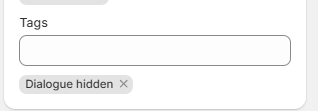
Section titled “How to Auto-Hide products?”Step 1: Simply add one of the following tags to the products you want to hide.
Section titled “Step 1: Simply add one of the following tags to the products you want to hide.”In your product feed, add one of these tags to any product you want to hide:
Dialogue-hidden(with hyphen)Dialogue_hidden(with underscore)Dialogue hidden(with space)
Note: All three variations work identically. Choose one format that fits your existing tagging system.
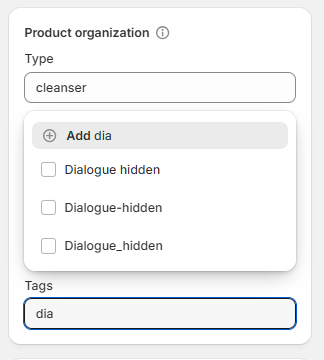
Don’t forget to save your changes.
Changes sync automatically within 15 minutes
Step 2: Verify the Results
Section titled “Step 2: Verify the Results”Tagged products will no longer appear in:
- Product recommendation carousels
- Cross-selling assets
- Any other Dialogue assets that display products
Case Sensitivity
Section titled “Case Sensitivity”Tags are not case-sensitive. These all work:
Dialogue-hiddendialogue-hiddenDIALOGUE-HIDDEN
Q: Will this affect my Shopify store display?
A: No, this only affects Dialogue assets. Your Shopify store remains unchanged.
Q: Can I hide products from specific assets only?
A: For selective display, use Behavior settings via the product display rules.
Q: What happens if I remove the tag?
A: The product will automatically become available for display in assets again (unless manually toggled off).
Q: Can I see a list of all hidden products?
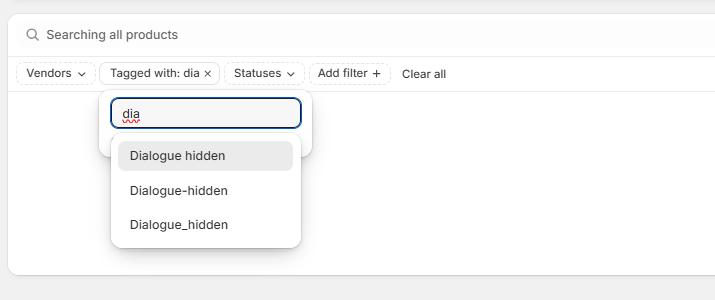
A: Yes, go to Shopify product management, and filter by tag to see dialogue hidden products.