

Setting up your Global CSS (No-Code!)
Effortlessly apply your brand styling to every Dialogue asset with one simple setup
Section titled “Effortlessly apply your brand styling to every Dialogue asset with one simple setup”What is Global CSS and why should you use it?
Section titled “What is Global CSS and why should you use it?”Global CSS is a powerful feature that allows you to apply consistent brand styling across all your Dialogue assets with a single setup. Instead of manually customizing each asset individually, you can define your brand’s colors, fonts, spacing, and design elements once, and they’ll automatically apply to every Dialogue asset on your website.
Key benefits:
- Save time: Style all your assets at once instead of customizing each one individually
- Brand consistency: Ensure every Dialogue asset perfectly matches your website’s look and feel
- Automatic updates: Make changes once and see them instantly across all your assets
How to set up Global CSS (No coding experience required)
Section titled “How to set up Global CSS (No coding experience required)”Don’t worry if you’re not a developer - this process is designed to be simple and straightforward. You’ll just need to copy and paste a few lines of text.
Step 1: Find your unique CSS link
Section titled “Step 1: Find your unique CSS link”-
In your Dialogue dashboard, navigate to Settings > Brand > Global CSS > Click on “How to use”.

-
You’ll see a unique CSS file URL:
https://cdn.nowdialogue.com/prod/stores/mystorename......global.css -
This URL is automatically generated for your account and updates in real-time when you make styling changes.
Step 2: Copy the HTML link tag
Section titled “Step 2: Copy the HTML link tag”You’ll find a pre-formatted HTML link tag that looks like this:
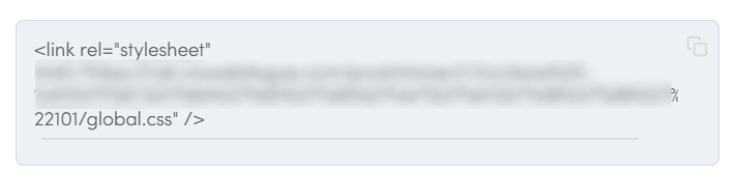
Click the copy button next to this code to copy it to your clipboard.
Step 3: Add the code to your website
Section titled “Step 3: Add the code to your website”This is where you’ll need to access your website’s code, but don’t worry - you’re simply adding a line:
Access your website’s HTML:
- Find the
<head>section in your website’s code - Paste the link tag between
<head>and</head>, preferably before other CSS files to ensure proper loading order. - Save your changes: Save the file or publish your changes
Once you’ve saved the changes:
- Visit your website and check any pages with Dialogue assets
- Your assets should now automatically inherit your global styling
- Any future changes you make to your global CSS will appear instantly across all assets
What styling can you control with Global CSS?
Section titled “What styling can you control with Global CSS?”Global CSS gives you complete control over your Dialogue assets’ appearance:
Visual elements:
- Colors (backgrounds, text, buttons, borders)
- Typography (fonts, sizes, weight, spacing)
- Spacing and padding
- Button styles and hover effects
- Badge and promotional element designs
- Navigation arrow styles
Interactive elements:
- Hover effects
- Active states
- Loading animations
- Mobile-specific behaviors
Troubleshooting
Section titled “Troubleshooting”Assets not showing your custom styles?
- Double-check that you’ve added the link tag inside the
<head>section - Ensure you’ve saved and published your website changes
- Clear your browser cache and refresh the page
- Verify the CSS URL is accessible by visiting it directly in your browser
Ready to get started?
Section titled “Ready to get started?”With Global CSS, you can transform all your Dialogue assets to perfectly match your brand in just a few minutes. This one-time setup will save you hours of individual asset customization and ensure a consistent, professional appearance across your entire shopping experience.