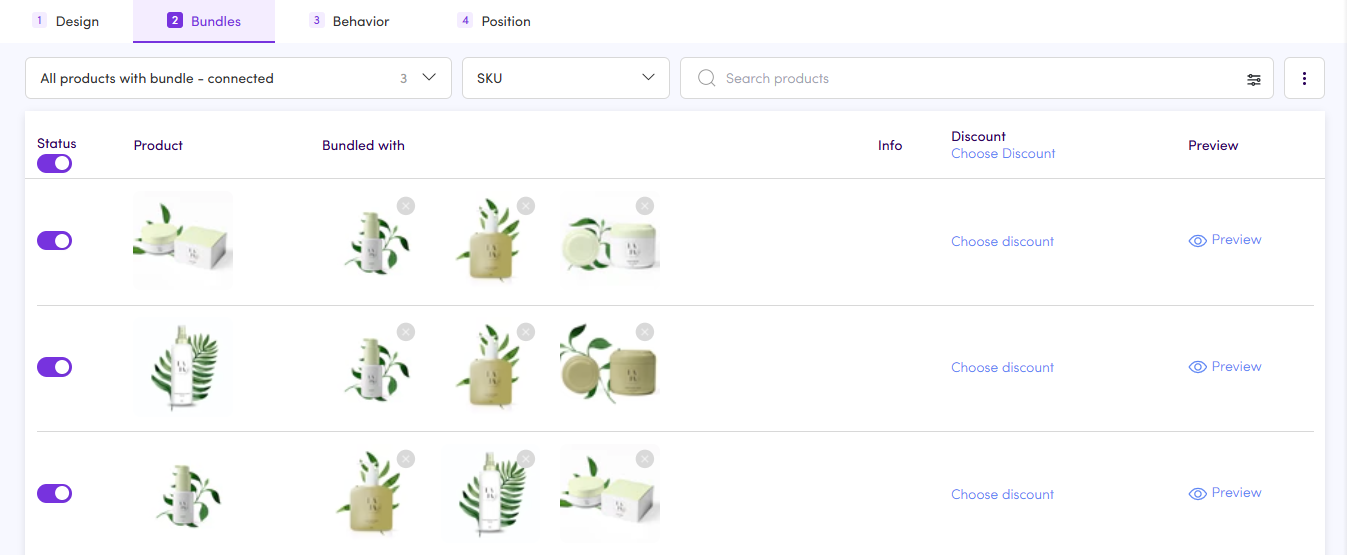
Make sure you have at least one Bundle asset with connected product combinations
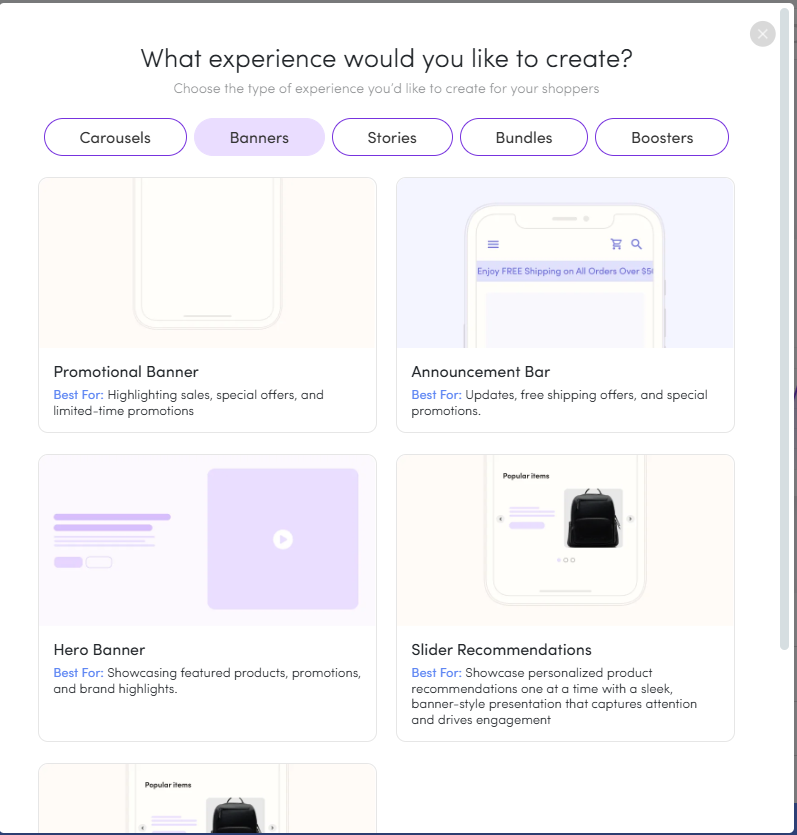
Make sure you have a Slider Recommendations banner asset created
An additional layer to Dialogue's Complementary Items algorithm, Bundled Items reads directly from your existing Bundle asset configurations. When a shopper added an item in cart, if the item has add-ons in the bundle asset, the banner displays items that match what's in their cart. This means every recommendation shown is one you've already reviewed and approved as part of a bundle.
Open/create a Slider Recommendations banner asset in the asset editor and click the Behavior Tab.
Select the behavior you want to update (Preferably the “All Visitors”), or click + Add Behavior to create a new one.
In the behavior panel, click Product Display to open the display rule options.
Scroll to the Custom Rules section and select Bundled Items.
Add relevant messaging, like: “Goes great with”.
Click Save & Exit to apply the rule.
Position the asset in the cart, floating/mini cart or checkout.
When a shopper has a qualifying product in their cart, the banner renders the corresponding add-on items from your bundle configuration — inline in the cart drawer, at checkout, or in the floating cart, depending on where the banner is positioned. The shopper sees a targeted recommendation without being redirected to a product page, keeping them focused on completing their purchase.